Projects
Projects are an organizational layer within a Temporal Cloud Account that groups related resources into a single operational boundary. With Projects, you can organize Namespaces, Nexus endpoints, and Connectivity Rules around how your organization operates: by team, environment, service, or business unit.
Projects make it easier to delegate ownership, manage access at scale, and organize resources without creating additional Cloud Accounts. As your organization grows, Projects help align your Temporal Cloud resources with your organizational structure while reducing operational overhead.
Projects are for organization and authorization. They don't change how Workflows execute inside a Namespace. They also don't restrict which Namespaces can call a Nexus Endpoint. See Use Nexus across Projects.
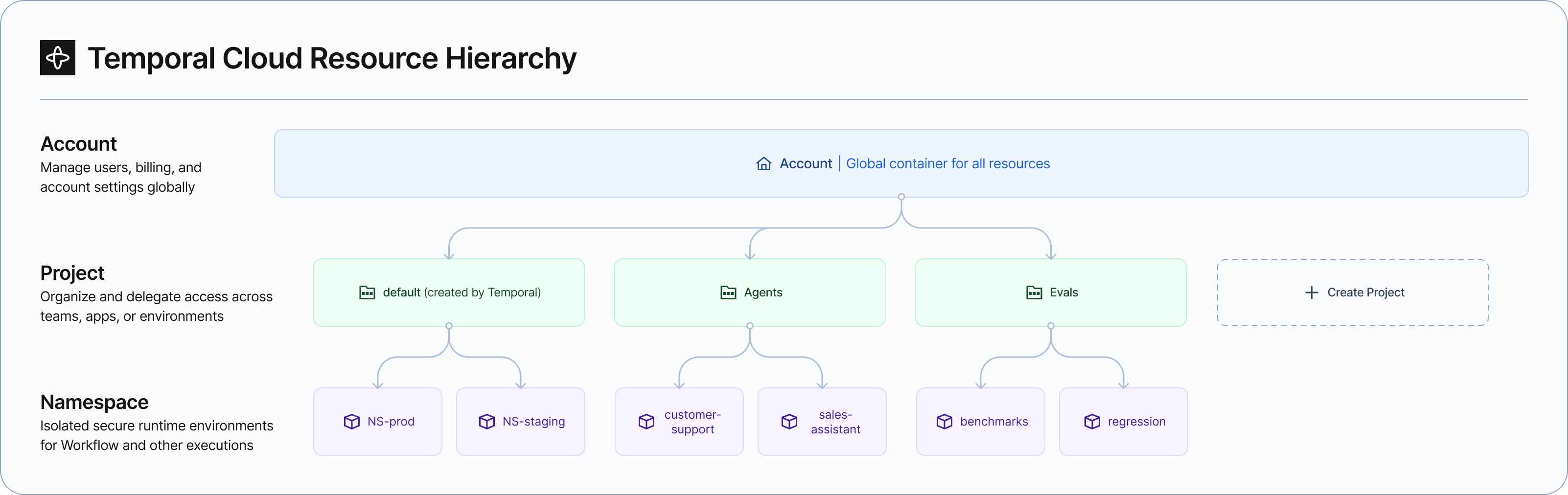
Temporal Cloud resource hierarchy
Enable Projects on your Account
While Projects are in pre-release, they are not enabled by default. Contact Support to request enabling Projects for your account.
Once Projects are enabled, existing Accounts receive a Default Project, and new Accounts are created with one automatically. For existing Accounts, all existing resources are automatically placed in the Default Project. Existing role assignments and effective permissions remain unchanged. For new Accounts, the Default Project is created automatically. New resources are automatically placed in the Default Project unless you specify otherwise.
Default Project and Project ID
Every Temporal Cloud Account includes a Default Project. The Default Project is not a special type of Project. It behaves like any other Project for managing resources. The main difference between the Default Project and any Projects you create is that the Default Project is automatically created for you as a starting point and provides backward-compatible behavior for existing resources and operations that do not specify a Project. Otherwise, it supports the same resource-management capabilities as other Projects.
If you don't need the organizational boundaries offered by Projects, continue to use the Default Project for all your resources. You can always create a new Project later if you need it.
Every Project has a unique, immutable Project ID and an editable display name. The Project ID is used by the Cloud Ops API, CLI, and Terraform to identify the Project when creating and managing Project-scoped resources.
You can move an existing Namespace to another Project. See Move a Namespace to another Project. You can also create a new Project and place a new Namespace in that Project.
For limitations on the number of Projects per Account and number of resources per Project, see Project-level limitations.
Create a new Project
Create a Project when a set of resources has a distinct owner or access model, separate from the Default Project. A good Project represents a stable ownership boundary, not just a folder.
Start with one Project for a team or application with clear ownership. Add more only when needed.
- Cloud UI
- Cloud Operations API
To create a Project using the Temporal Cloud UI:
- Select Projects at the top of the left navigation bar.
- Click the Create Project button to create a new Project.
- On the Create Project page that appears, give the Project a name (limited to 64 characters) and an optional description (limited to 255 characters).
- Click Create.
Use the
CreateProject API call
to create a Project. The structure of the CreateProjectRequest is defined by a JSON spec, as follows:
"spec": {
  "description": "",
  "displayName": "",
  "lifecycle": {
    "enableDeleteProtection": true
  }
}
In this call, description is a string description of the Project, displayName is the Project name to be displayed in the UI, and enableDeleteProtection is a Boolean that indicates whether the Project can be deleted.
After creating the Project, add new Namespaces and other supported resources within it. A Namespace can be moved to another Project. See Move a Namespace to another Project. Other resources cannot yet be moved from one Project to another.
Add Resources to a Project
After creating a Project, you can create Project-scoped resources such as Namespaces, Nexus Endpoints, or Connectivity Rules within it.
- Cloud UI
- Cloud Operations API
In Temporal Cloud UI:
- Open the Project.
- Select Namespaces (or Nexus Endpoints) in the left navigation.
- Click Create Namespace (or Nexus Endpoints) to add to the project.
Connectivity rules cannot currently be created via the UI. Connectivity rules and the Namespace they attach to must reside in the same Project.
The process for creating a Namespace, Nexus Endpoint, or Connectivity Rule with the Cloud Operations API is the same as the standard process for creating those resources, with the addition of the projectId for the Project in which you're creating the resource.
Use the
CreateNamespace API call
to create a new Namespace within a Project. For example:
curl -sS -X POST "$BASE/cloud/namespaces" \
  -H "$H_AUTH" -H "$H_VER" -H "Content-Type: application/json" \
  -d '{
    "projectId": "'"$PROJECT_ID"'",
    "spec": {
      "name": "payments-prod",
      "regions": ["aws-us-west-2"],
      "retentionDays": 7,
      "apiKeyAuth": { "enabled": true }
    }
  }'
Use the
CreateCreateNexusEndpoint API call
to create a new Nexus Endpoint within a Project. For example:
curl -sS -X POST "$BASE/cloud/nexus/endpoints" \
  -H "$H_AUTH" -H "$H_VER" -H "Content-Type: application/json" \
  -d '{
    "projectId": "'"$PROJECT_ID"'",
    "spec": {
      "name": "order-fulfillment",
      "targetSpec": {
        "workerTargetSpec": {
          "namespaceId": "payments-prod.a1b2c3",
          "taskQueue": "nexus-handler"
        }
      },
      "policySpecs": [
        {
          "allowedCloudNamespacePolicySpec": {
            "namespaceId": "checkout-prod.a1b2c3"
          }
        }
      ]
    }
  }'
In this example, payments-prod.a1b2c3 is the target Namespace (handler) and checkout-prod.a1b2c3 is an allowed caller Namespace.
Those Namespaces can be in different Projects from each other and from the Endpoint. Runtime access is the caller allowlist, not Project membership.
See Use Nexus across Projects.
Use the
CreateConnectivityRule API call
to create a new Connectivity Rule within a Project. For example, for a private Connectivity Rule on AWS:
curl -sS -X POST "$BASE/cloud/connectivity-rules" \
  -H "$H_AUTH" -H "$H_VER" -H "Content-Type: application/json" \
  -d '{
    "projectId": "'"$PROJECT_ID"'",
    "spec": {
      "privateRule": {
        "connectionId": "vpce-0123456789abcdef0",
        "region": "aws-us-west-2"
      }
    }
  }'
Or for a public Connectivity Rule:
curl -sS -X POST "$BASE/cloud/connectivity-rules" \
  -H "$H_AUTH" -H "$H_VER" -H "Content-Type: application/json" \
  -d '{
    "projectId": "'"$PROJECT_ID"'",
    "spec": {
      "publicRule": { "enableStableIps": true }
    }
  }'
Then attach the Connectivity Rule to a Namespace within the same project via UpdateNamespace. Creating the Connectivity Rule alone does not bind it to a Namespace.
Move a Namespace to another Project
You can move a Namespace to another Project in the same Temporal Cloud Account. The Namespace metadata and settings stay the same. That includes its name, full Namespace ID, gRPC endpoint, tags, and its other settings.
A move changes which Project contains the Namespace and recalculates Project-level access:
- Explicit Namespace-level role assignments and Namespace-scoped Service Accounts stay with the Namespace.
- Access that comes only from the source Project does not carry over. A role on the destination Project applies after the move.
- Project-scoped Service Accounts remain in their Project. A Service Account scoped to the source Project does not move with the Namespace.
Running Workflows continue, but subsequent requests from workers or clients that relied on source-Project access can fail authorization. Review the identities used by your workers, clients, and automation before moving a production Namespace. See Manage Project access.
The destination Project must be operational and under its Namespace limit. The Namespace must be active. A suspended Namespace, a Namespace that is still updating, or a Namespace with a migration in progress cannot be moved.
If Move to Project is not available, contact Support.
Prepare the destination Project
- Confirm that you are an Account Owner or Global Admin, or a Project Admin on both Projects.
- Find the source and destination Project IDs in Project Settings, or run
temporal cloud project list. - Grant any destination-Project roles that workers, clients, and administrators need after the move.
- Identify users who will have Project Admin on the destination Project and an explicit role on the Namespace. Plan to remove those Namespace roles immediately after the move completes. Keep them in place until then so existing automations retain their access.
- Check the Namespace's Connectivity Rules. A rule belongs to a Project and does not move with the Namespace. Create the replacement rules in the destination Project before the move.
A Namespace with no Connectivity Rules accepts connections without rule-based network restrictions. Detach rules only when that is the intended result.
The Cloud UI blocks the move when the Namespace has Connectivity Rules attached. To keep rule-based network restrictions, use the CLI or the Cloud Operations API and name rules that already exist in the destination Project.
- Cloud UI
- Cloud Operations API
- CLI
- Open the Project and select Namespaces.
- Scroll right to the Capabilities column.
- Select the vertical ellipsis (⋮) on the Namespace row, then select Move to Project.
- Select the destination Project.
- Review the access warning and select Move Namespace.
You can also open the Namespace, select Settings, select Danger Zone, and select Move Namespace.
Call
MoveNamespaceToProject.
Read the Namespace's current resourceVersion from
GetNamespace.
ruleIds is the full set of destination-Project rule IDs the Namespace should have after the move.
curl -sS -X POST "$BASE/cloud/namespaces/<namespace>.<account>/move-to-project" \
  -H "$H_AUTH" -H "$H_VER" -H "Content-Type: application/json" \
  -d '{
    "destinationProjectId": "<destination-project-id>",
    "expectedSourceProjectId": "<source-project-id>",
    "resourceVersion": "<current-namespace-resource-version>",
    "ruleIds": {
      "connectivityRuleIds": [
        "<destination-rule-id>"
      ]
    }
  }'
For authentication headers and API versioning, see Cloud Ops API.
To leave the Namespace with no rules, send "unrestricted": {} instead of ruleIds. Omit both only when the Namespace has no rules before the move. The response contains an async operation. Wait for that operation to finish before you treat the move as complete.
Install a Temporal Cloud CLI release that supports namespace move-to-project, then sign in with temporal cloud login. Use temporal cloud whoami to confirm the account.
Check the Namespace's current rules and the rules available in the destination Project:
temporal cloud namespace connectivity list \
  --namespace <namespace>.<account>

temporal cloud connectivity list \
  --project-id <destination-project-id>
Move the Namespace and attach destination-Project rules. Repeat --connectivity-rule-id for each rule. Those rules replace the Namespace's current rules.
temporal cloud namespace move-to-project \
  --namespace <namespace>.<account> \
  --source-project-id <source-project-id> \
  --destination-project-id <destination-project-id> \
  --connectivity-rule-id <destination-rule-id>
Use --no-connectivity-rules instead of --connectivity-rule-id when the Namespace should have no rules after the move. Omit both only when the Namespace has no rules before the move.
The source Project ID is a safety check: --source-project-id is required. The move fails when the Namespace is no longer in that Project. The CLI asks for confirmation and waits until the move finishes. Add --auto-confirm to skip the prompt. Add --async to return an operation ID, then wait with:
temporal cloud async-operation await \
  --async-operation-id <operation-id>
Verify the move
Confirm that the Namespace is in the destination Project and has the Connectivity Rules you intended. Test the identities used by your workers and clients, including any that previously relied on a source-Project role or a Project-scoped Service Account.
Resolve overlapping roles after the move
A Namespace move keeps its explicit Namespace roles. If a user becomes a Project Admin in the destination Project after the move, that user has a role conflict between the Project role and the Namespace role because of role precedence. The conflict doesn't block the move, but any later update to that user fails until you remove the overlapping role.
Immediately after the move, remove the user's redundant roles on the moved Namespace and keep their Project Admin role. Do this before any other update to that user. Keep the Namespace role in place until the move completes so automations that depend on it continue to work.
Use Nexus across Projects
Projects group Nexus Endpoints for organization and authorization. They do not change how Nexus Operations run.
- A Nexus Endpoint lives in one Project. That Project controls who can create, list, update, and delete the Endpoint.
- Runtime access is unchanged: the Endpoint allowlist of caller Namespaces. A caller Namespace in another Project can invoke the Endpoint if it is on that allowlist.
- The target Namespace (handler) does not have to be in the same Project as the Endpoint. Unlike Connectivity Rules, Nexus does not require the Endpoint and its Namespaces to share a Project.
Example: an Endpoint in Project payments, a target Namespace in payments, and a caller Namespace in checkout.
That call is allowed when the checkout Namespace is on the Endpoint allowlist.
A user who can only list Endpoints in checkout will not see the Endpoint in payments.
Manage Project access
Users, groups, and Account-scoped Service Accounts can be granted Project-level roles. Each Project role applies to the Project and, depending on the role, may grant inherited access to resources within it.
- Cloud UI
- Cloud Operations API
To manage Project access in the Temporal Cloud UI:
- Open the Project.
- Click the Project Identities tab in the left navigation. The Project Identities page has three tabs, for Users, Service Accounts, and Groups.
- Click the Manage Identities button to add (or remove) users, groups or service accounts, and assign desired Project Roles from the drop-down list. You can also modify or remove an existing principal's role in the same view.
Use the
SetUserProjectAccess API call
to add Users to a Project.
Use the
SetUserGroupProjectAccess API call
to add User Groups to a Project.
Both calls take two required parameters:
projectId- The ID of the Project to set permissions for.userIdorgroupId- The ID of the User or Group to set permissions for.
Use the role attribute to set the role for the User or Group. See Project roles for more information.
"access": {
  "role": ""
},
Similar to Namespace-scoped Service Accounts, a Project-scoped Service Account is an identity bound (or scoped) to a single Project. Use it for workers, CI/CD pipelines, Terraform, or operational automation that should not access resources outside that Project. Project-scoped Service Accounts are not created automatically with Project creation. Create them only when needed.
- Cloud UI
- Cloud Operations API
To create a Project-scoped service account in this Project, click Project Identities in the left navigation. Then click the Service Accounts tab to create a Project-scoped service account.
Use the
SetServiceAccountProjectAccess API call
to add Service Accounts to a Project.
The call takes two required parameters:
projectId- The ID of the Project to set permissions for.serviceAccountId- The ID of the Service Account to set permissions for.
Use the role attribute to set the role for the User or Group. See Project roles for more information.
"access": {
  "role": ""
},
After creating the Service Account, you can optionally create one or more API keys for it. Each API key inherits only the permissions of its associated Service Account. If the Service Account is deleted, all of its API keys are deleted automatically.Project-scoped Service Accounts count toward the Project's Service Account limit.
A Project-scope Service Account:
- Can only bound (or scope to) exactly one Project. Each project can contain multiple Project-scoped Service Accounts.
- Cannot be moved to another Project after it is created.
- Counts toward the Project's Service Account limit.
- Must be deleted before the Project can be deleted.
Unlike an Account-scoped Service Account, a Project-scoped Service Account cannot access resources outside its Project. For automation that needs access across multiple Projects, use an Account-scoped Service Account and grant it the appropriate Project roles.
Project roles
The following roles are available at the Project level for users, groups, and service accounts:
- Project Admin: Complete access to the Project resource itself and all resources in it.
- Project Write: Write access to all the Namespaces and other resources in a Project, but cannot add other users.
- Project Read: Read-only access to all the resources in a Project, including viewing the actual contents of a Workflow.
- Project Contribute: Can create new Namespaces, and list all Project resources, but without access to Workflow contents.
- Project List: List-only access to metadata for all the resources in a Project, but without access to Workflow contents.
- Project Member: Minimal Project-level access; used when a user already has explicit Namespace-level access and only needs to be represented at the Project level
Project Developer is a compatibility role that is automatically inherited by users with the Account Developer role. It allows them to create Namespaces (and manage them) without automatically granting access to all existing Namespaces in the Project. This role cannot be assigned directly. For new role assignments, assign Project Write or Project Contribute as appropriate.
A principal automatically inherits a Project-level access from their Account-level role. For example, a Global Admin automatically inherits the Project Admin access for every Project in the Account.
Project-level permissions are additive. Granting a Project-level role does not reduce permissions inherited from Account-level or Namespace-level roles. A principal's effective permissions are the union of all applicable Account-, Project-, and Namespace-level role assignments.
Role precedence
Role-precedence validation rejects a redundant lower-scope role when a broader-scope role already grants equal or greater access. This keeps role assignments aligned with effective access.
When the principal's Account role is:
| Existing Account role | Project role you can assign |
|---|---|
| Account Owner or Global Admin | None. These roles already include Project Admin on every Project. |
| Developer | Project Admin, Project Write, Project Read, or Project Contribute. |
| Finance Admin or Read-Only | Any Project role. |
When the principal's Project role is:
| Existing Project role | Namespace role you can assign in that Project |
|---|---|
| Project Admin | None. Project Admin already includes Namespace Admin on every Namespace in the Project. |
| Project Write | Namespace Admin. |
| Project Read | Namespace Admin or Namespace Write. |
| Project Contribute, Project List, or Project Member | Any Namespace role. |
The Cloud UI removes redundant Namespace roles when you upgrade an Account role. A Namespace move does not. After a move, remove an explicit Namespace role that overlaps with Project Admin on the destination Project before you update that user again.
Modify an existing Project
- Cloud UI
- Cloud Operations API
To modify an existing Project, click Project Settings in the left navigation. The Project Settings page appears, with the General tab selected by default. Here, you can change the name or description of your Project. You can also access your Project's unique ID. You can copy the ID, but you can't change it.
Use the
UpdateProject API call
to add Service Accounts to a Project.
The call takes one required parameter:
projectId- The ID of the Project to set permissions for.
The structure of the UpdateProjectRequest is defined by a JSON spec, as follows:
"spec": {
  "description": "",
  "displayName": "",
  "lifecycle": {
    "enableDeleteProtection": true
  }
}
In this call, description is a string description of the Project, displayName is the Project name to be displayed in the UI, and enableDeleteProtection is a Boolean that indicates whether the Project can be deleted.
Delete a Project
A Project must be empty, meaning it contains zero Namespaces, Nexus Endpoints, Connectivity Rules, or Project-scoped Service Accounts, to be deleted.
An Account must always contain at least one Project. If the Account contains two or more Projects, you can delete the Default Project. If the Default Project is deleted, Temporal does not automatically designate a new Default Project. If the Default Project is deleted, API calls that do not specify a Project (by providing a Project ID) will fail.
- Cloud UI
- Cloud Operations API
To delete a Project, click Project Settings in the left navigation and then click the Delete Project tab. Click the Delete button to permanently delete the Project.
Use the Deletion Prevention slider to set the Deletion Protection flag for this Project. Once set, the Project can't be deleted unless the flag is deliberately disabled.
Use the
DeleteProject API call
to delete a Project.
The call takes one required parameter:
projectId- The ID of the Project to delete.
This call will not succeed if the delete protection flag is enabled.
Projects support a delete protection flag, similar to Namespaces. When this flag is enabled, the Project cannot be deleted until the flag is disabled. This flag is enabled for the Default Project. The flag is disabled for any new Project created by a user. This flag is not inherited by the Namespaces within the Project. Namespace delete protection can be managed per-Namespace. If a Project is the only one remaining in an Account, that project cannot be deleted, regardless of the status of the Deletion Protection Flag.